
How to use a DIGITALYCHEE coupon code
Five steps from picking software to paying, each with a screenshot. The flow is the same for every title in the store; Typora is used as the example.
Pick your software and add it to the cart
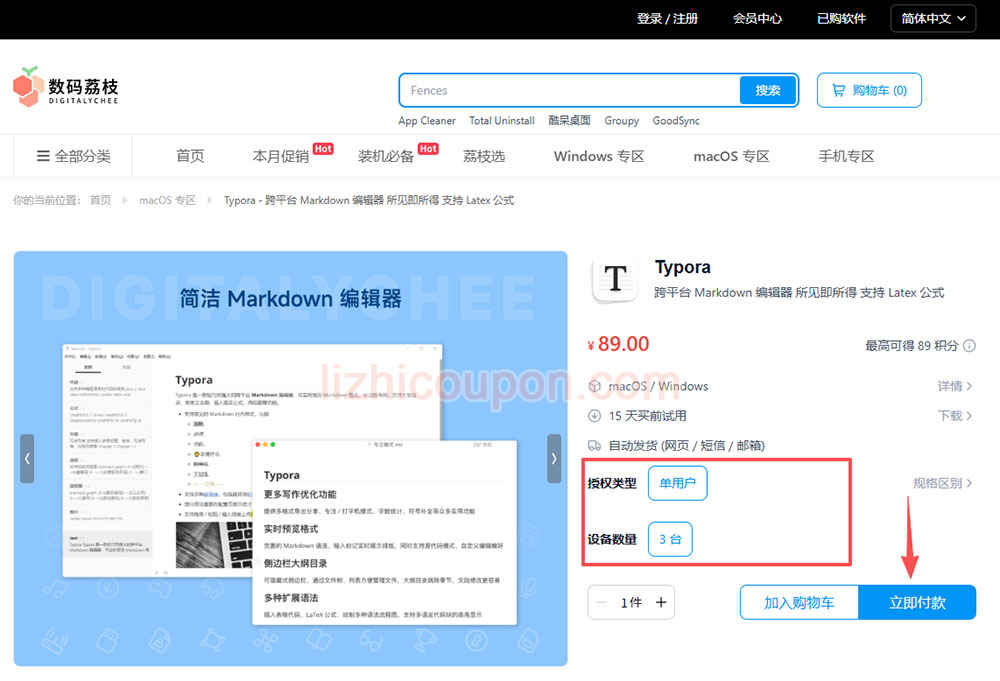
Search or browse to the title you want and open its product page. Choose the licence type that fits — personal and professional editions cover different numbers of devices, and prices differ accordingly.
Once the options are right, click Add to cart or Buy now to reach checkout.
Sign in or create an account
If you are not signed in you will be sent to the login page. Phone number with an SMS code (recommended), email with a code, or WeChat / QQ quick login all work. An unregistered phone number is signed up as soon as the code is verified.

New here? Join the free membership for ¥5 off
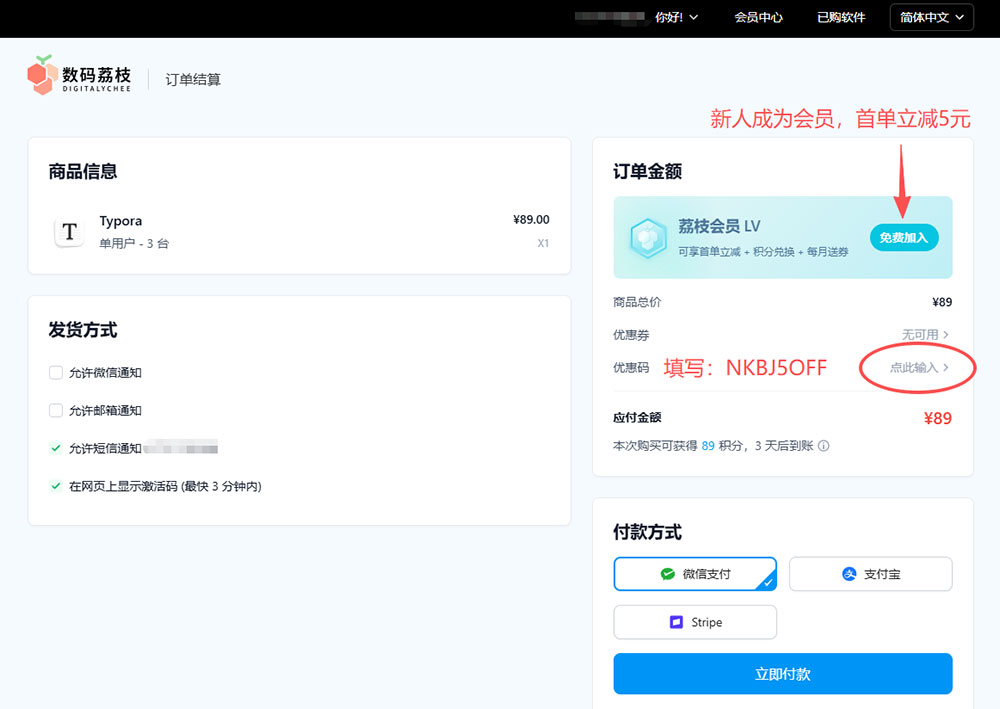
On the checkout page there is a Lizhi membership card above the order summary. On your first purchase, click Join for free and a first-order discount of ¥5 appears in the breakdown automatically.
This is the step most people miss: the membership is free, and it does not interact with the coupon code at all.
Enter the coupon code
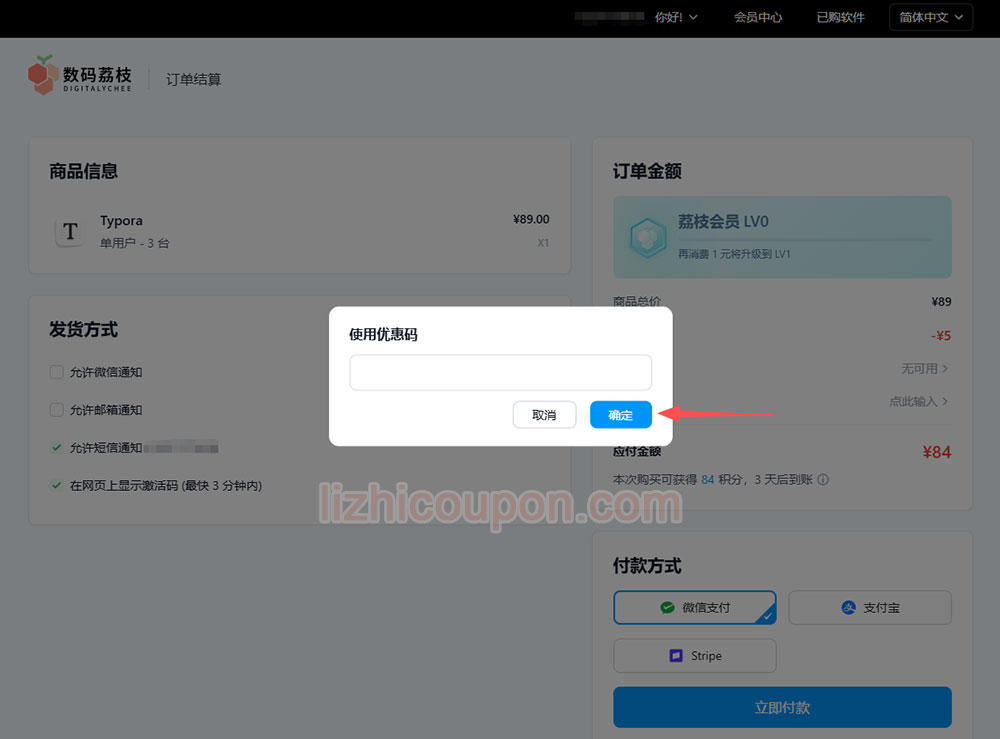
In the order summary, find the coupon code field, click it, paste the code and hit Confirm. The total updates immediately.
No minimum spend, no expiry
10% off the order total
Check the total, then pay
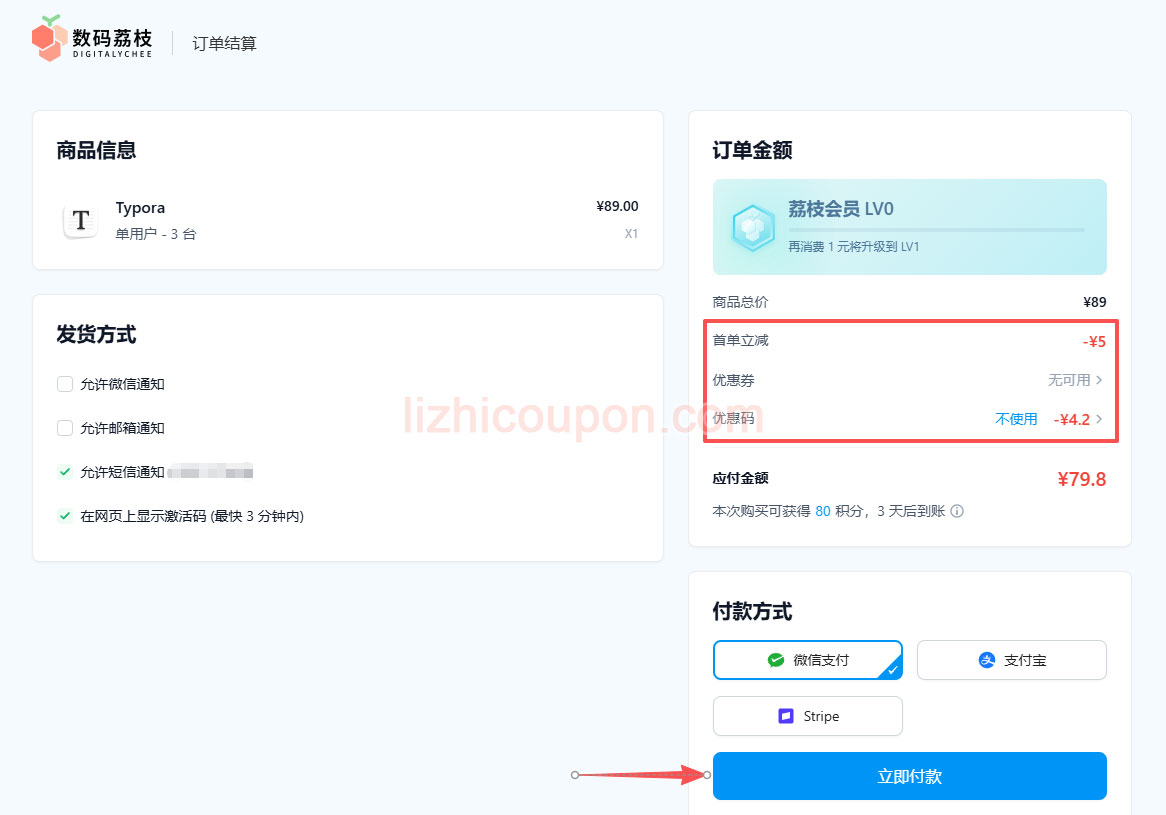
Before paying, look at the amount due: you should see two negative lines, the first-order discount and the coupon code. For Typora, ¥89 becomes ¥79.80 after both deductions.
After payment the licence key is shown on the page immediately (usually within 3 minutes) and is also sent by SMS and email. Enter it in the software to activate.
Common questions
The code does nothing — what now?
Can I use both codes in one order?
Does the first-order discount conflict with the code?
I paid but did not get a licence key
Is there a limit on how often I can use the code?
All set?
Copy the code and paste it at checkout to take the discount